Securing Your Remote Desktop Connection: A Step-by-Step Guide for Windows Users
Introduction
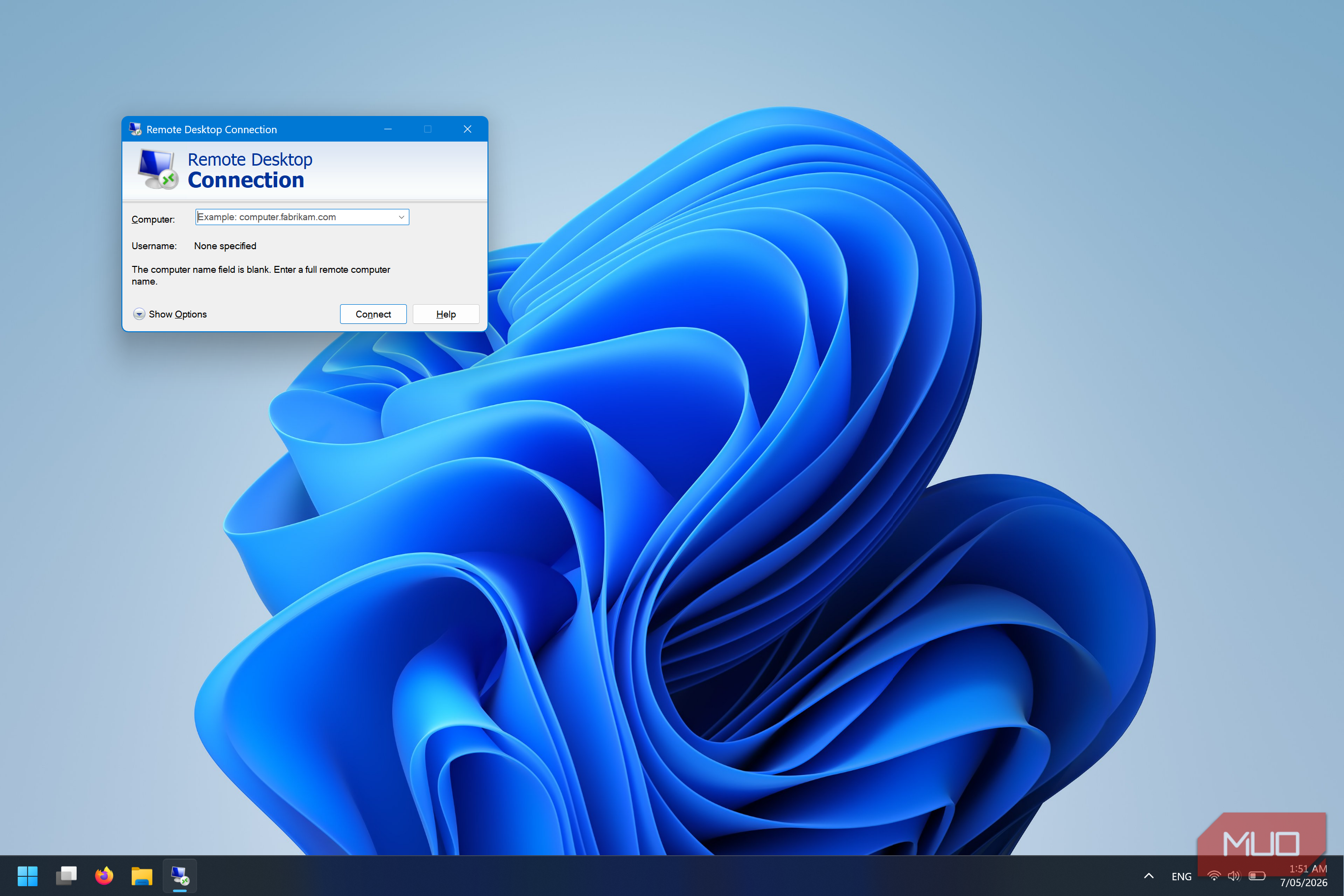
Remote Desktop Protocol (RDP) is a powerful tool for accessing your Windows machine from anywhere, but its convenience comes with significant security risks. Without proper safeguards, RDP can leave your system vulnerable to unauthorized access, brute-force attacks, and data breaches. This guide walks you through essential security changes to make before using RDP remotely, ensuring a fast, native-like experience without compromising safety.
What You Need
- A Windows PC or Server with RDP enabled (Windows Pro, Enterprise, or Server edition)
- Administrator access to configure system settings
- Internet connection for remote access
- Optional: Third-party tools like a VPN client or two-factor authentication app (e.g., Google Authenticator)
- Basic knowledge of Windows networking and firewall settings
Step-by-Step Instructions
Step 1: Enable Remote Desktop Securely
Start by turning on RDP only on the specific machine you need to access. Navigate to Settings > System > Remote Desktop and toggle on “Enable Remote Desktop.” Important: Uncheck “Allow remote connections to this computer” if you’re not actively using it. For added security, keep the slider off when not in use.
Step 2: Enforce Network Level Authentication (NLA)
NLA requires users to authenticate before establishing an RDP session, reducing the risk of denial-of-service attacks. To enable it, go to System Properties > Remote tab, check “Allow connections only from computers running Remote Desktop with Network Level Authentication.” This ensures only authenticated clients can connect.
Step 3: Use a Virtual Private Network (VPN)
Never expose RDP directly to the internet. Instead, set up a VPN server on your network (e.g., WireGuard, OpenVPN) or use a cloud-based VPN service. Connect to the VPN first, then launch RDP. This encrypts all traffic and hides your RDP port from public scanning. See tips for choosing a VPN.
Step 4: Change the Default RDP Port
By default, RDP listens on port 3389. Attackers scan for this port constantly. Change it to a non-standard port (e.g., 54321) via Registry Editor:
- Open regedit as Administrator.
- Navigate to
HKEY_LOCAL_MACHINE\System\CurrentControlSet\Control\Terminal Server\WinStations\RDP-Tcp. - Modify the PortNumber DWORD value (decimal) to your chosen port.
- Restart the Remote Desktop Services service.
Remember to update your firewall rules and RDP client to use the new port.
Step 5: Restrict User Access
Limit which user accounts can use RDP. Go to System Properties > Remote tab, click “Select Users,” and add only necessary accounts. Avoid using the default Administrator account for remote logins—create a separate user with strong, unique credentials.

Step 6: Implement Strong Authentication
Use long, complex passwords (at least 14 characters) with a mix of letters, numbers, and symbols. For extra protection, enable two-factor authentication (2FA) via solutions like Duo Security or AuthLite, which require a one-time code in addition to the password.
Step 7: Configure Windows Firewall
Open Windows Defender Firewall with Advanced Security. Create inbound rules that allow RDP traffic only from specific IP addresses (yours or your VPN subnet). Block all other inbound RDP attempts. This dramatically reduces the attack surface.
Step 8: Monitor and Log Remote Sessions
Enable RDP session logging via Event Viewer > Windows Logs > Security. Look for event ID 4624 (successful logon) and 4625 (failed logon). Set up alerts for multiple failed attempts to detect brute-force attacks.
Tips for a Secure and Smooth Experience
- Update regularly: Keep Windows and RDP client updated to patch known vulnerabilities.
- Use Remote Desktop Gateway (RDGW): For enterprise environments, deploy RDGW to proxy connections through HTTPS, adding encryption and granular access control.
- Avoid public networks: Always connect via VPN when on public Wi-Fi. Even with NLA, RDP traffic can be intercepted over unsecured networks.
- Test your setup: After making changes, verify connectivity from a different network (like a mobile hotspot) to ensure all security measures work.
- Disable RDP when not needed: Turn off Remote Desktop in settings when you don’t require remote access. This simple step eliminates many risks.
By following these steps, you can safely use Windows Remote Desktop from anywhere, enjoying the same fast, mic-and-sound-passing native experience while keeping your system locked down.